
What’s New with Adobe Express???
Introduction
Adobe Express is a powerful tool to help with graphic design projects. This includes flyers, posters, logo design, video projects, and more.
Whether you are a longtime user or new to Adobe Express, several recent updates are worth exploring. ITG member, Jo Lowe, previously put together an excellent guide outlining an overview of the tool and how to log in. You can view her post here.
Many updates have been released over the past year. Take a look below to see how these tools can support your daily work at WFU.
Event Invitations
Are you organizing an event and need to manage RSVPs? Start by creating a flyer, invitation, or event. After you are done designing, click Share and then Create event.
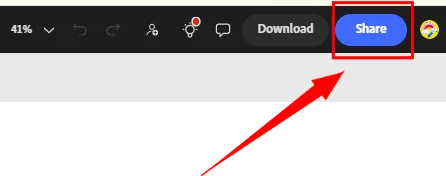
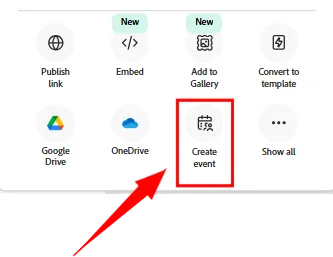
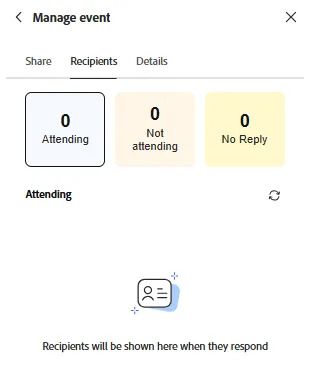
This tutorial provides an overview of the remaining setup steps and details on how to manage attendees. You can also view a preview of what your guests will see.
Restore an earlier version of a design:
Are you unhappy with your current version of a design and wish you could go back to an earlier edition? You can restore previous designs using “version history”:
- Select File at the top left.
- Select Show version history.
- You can then choose between your different versions that are sorted by timestamp.
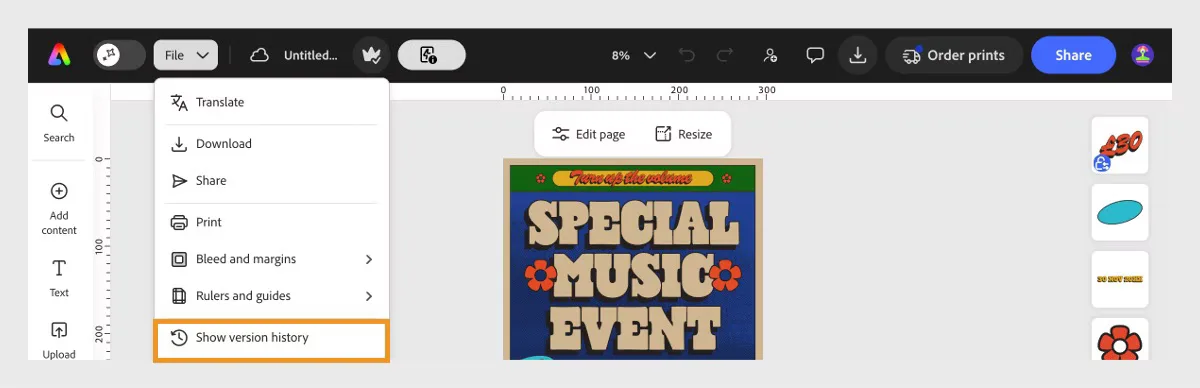
Note: Unbookmarked versions will expire after a certain period of days. See this tutorial for more information.
Batch PDF Import:
PDFs are great for sharing important information, but by design that are often not easily editable. However, Adobe Expresss has a new feature that will allow you to upload up to 30 pdf files. It will then convert all the text and images into fully editable objects. Each upload will result in one editable file.
To get started:
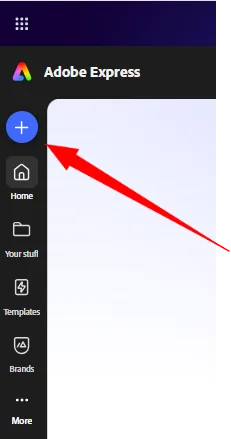
1. Click the blue + (Plus) button at the top left.
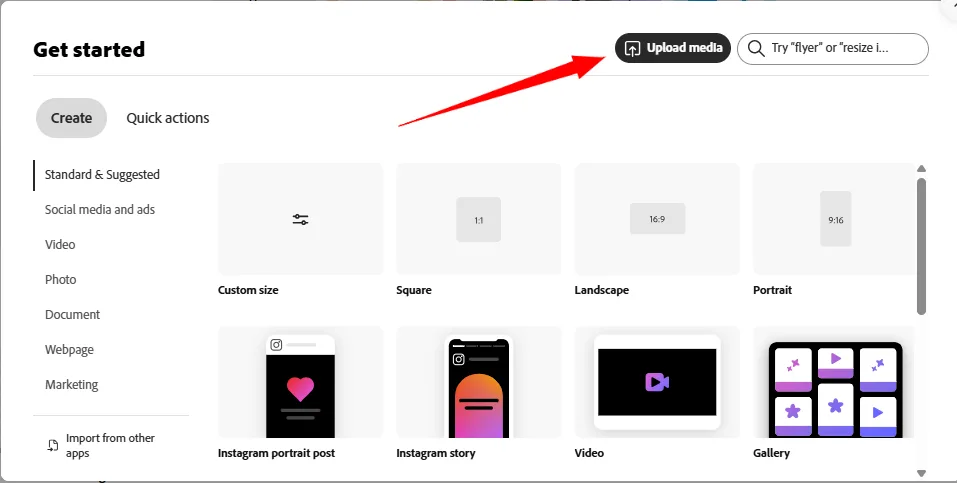
2. Click the Upload media button and select your file(s).
3. You can now edit the file on Adobe Express.
4. Note: if you want to combine PDF files:
- Click the blue + (Plus) button at the top left.
- Click Quick Actions.
- Scroll down and click the Combine Files tool. Upload your files.
- Click Add all, then Download.
- If you want to edit the files, you can follow steps 1-3 above.
More features…
Curious about other new features? Check out this page for a timeline of releases that Adobe Express has pushed out over the years.
Also, check with your ITG Member for questions or help integrating Adobe Express into your current workflow.
Image Source: https://helpx.adobe.com/express/web/arrange-layers-and-pages/version-history.html
Categories: Tech Tip