Still Need Professional Adobe Acrobat???
Try using Firefox to view and edit .pdf files

It turns out that the Firefox web browser is a surprisingly capable pdf viewer and editor for an average user’s typical needs. Like most of us on WFU’s campus, I install and use Adobe Acrobat when I need to edit pdfs because we have it licensed as part of our Adobe Creative Cloud. It is a big, powerful, professional-level tool. It definitely has its place. It’s not always the easiest tool to use.
For non-professional use (think about a spouse’s or kids’ computer – where you shouldn’t have your WFU accounts) you always have the option of the free Acrobat Reader. It’s pretty good, but many features like adding text and images, combining or splitting pdfs, and moving, rotating, copy/pasting pages are not available in the free Reader. You need the full version of Acrobat. For many, buying a personal license for Creative Cloud is not desirable. It isn’t cheap.
The good news is many of those features are available for free in Firefox’s built-in pdf editor functions.
Firefox’s Feature pages provide more details about its built-in pdf editing capabilities. New features have been added over the past year that previously required the full Acrobat Pro version, like the aforementioned editing text and images, combining or splitting pdfs, and organizing, rotating or cropping pages .
What it does not do
So give it a shot. Just remember, while the Firefox pdf editor is capable, it is not a 100% feature-for-feature replacement for Acrobat Pro. Firefox pdf editor lacks some key features.
You can not:
- directly edit content – the text and layout of the original file
- that means no true ability to redact or remove content
- you can draw a black box on top to visually obscure something, but the covered data is still there and easily recoverable
- Run OCR on scanned text (OCR is what converts a scanned image of text into actual, editable text)
- have PDF editing on mobile Firefox. It is in the desktop version of Firefox only
Want to try it out?
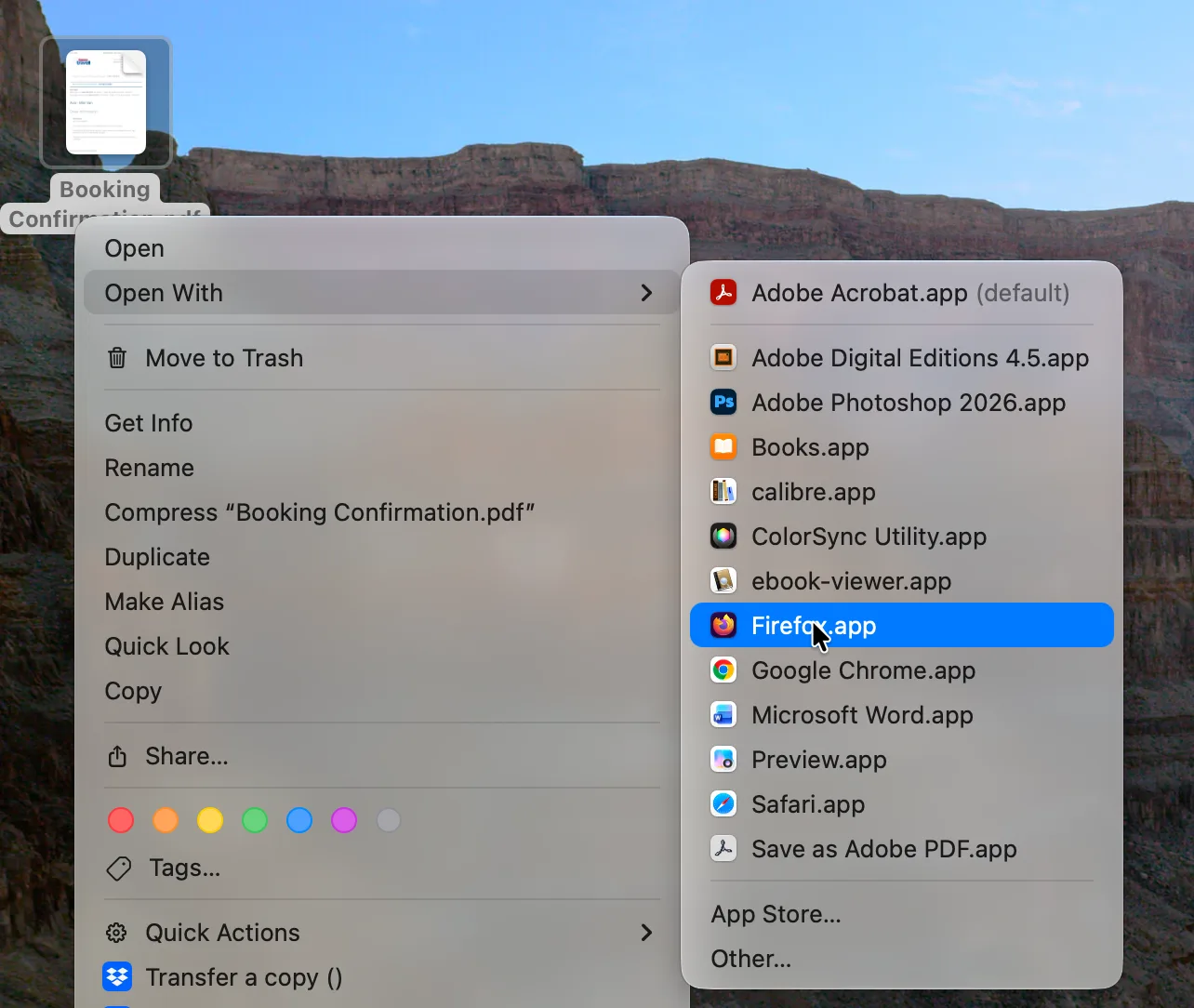
If you install Firefox on your computer, you can try it out with a pdf file on your computer.
- Locate the pdf file on the computer.
- Right click or two-finger click the pdf to access the context menu
- Choose Open With.
- Select Firefox.