
Canvas DocViewer: Two Workflow Ideas
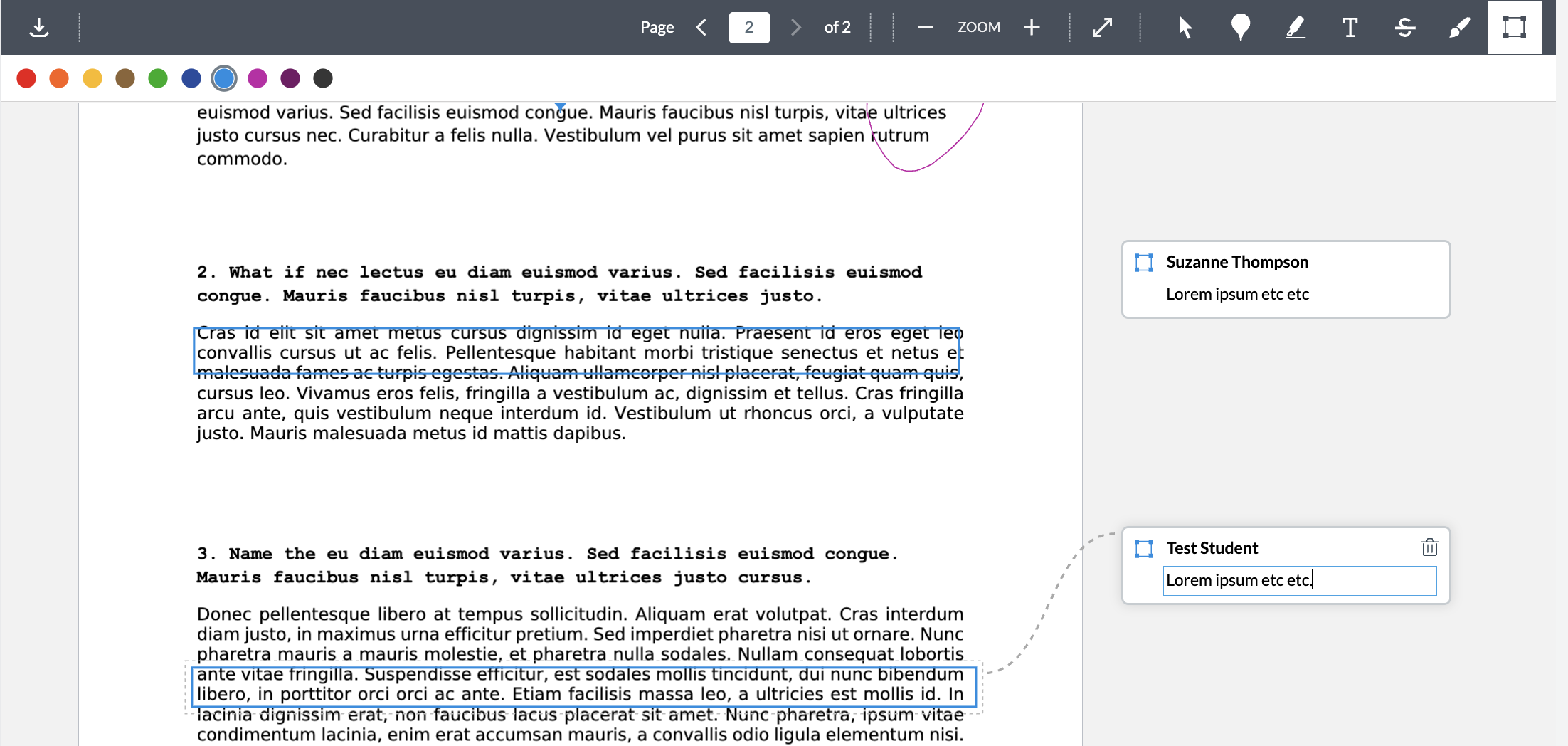
If you create a Canvas Assignment and choose the settings Online > File Uploads, you probably know you can then use DocViewer in SpeedGrader to add annotated comments to a student’s submission if it’s a supported file type.
But here are 2 workflow ideas to consider:
1–DocViewer is not only for documents.
It also works for most image files. Students can hand write an essay or draw a diagram, take a photo of it, and submit. You can then add annotated comments to the image. See supported file types.
Options for students:
- Students can use the Canvas app on their mobile device.
(Students can download them here: Apple Google Play )
They take a photo with their mobile device, submit to the Canvas Assignment via the app. OR - Students can take a photo, email it to themself, save it to their computer, submit to the Canvas Assignment from their computer. OR
- (Students will see this option in Canvas, but you may want to ask students not to use this method, as the image may not be as clear).
Students open the Canvas Assignment on their laptop, follow the steps to begin to submit, and take a photo of their paper by holding it up to the laptop’s webcam.
Remind students to confirm that the photo is clear and the words are easy to read before they submit.
2–Students can go first.
Example: Students grade their own work…
Sample Workflow:
- The student submits the Canvas Assignment — a document (typed or handwritten) with short essay answers to your questions.
- After the submission date, post the answers / exemplary responses.
- Student goes back to their Assignment submission, viewing their work and the provided responses. They annotate on their document using DocViewer, commenting on what they did well and what could be improved. They include their suggested grade in the Feedback/Comments box.
- View the student’s document and annotations, add annotations or replies, review their suggested grade, enter a final grade in the Canvas GradeBook.
Faculty–here is a detailed document of the above steps you can copy and modify for your class: For Students: Grading your Canvas submission
Benefits:
- Students develop a better understanding of the material, working with it several times in this workflow. They reflect on their knowledge as they review each of their own answers with the example answers, identifying what they did well and what could be improved, instead of just checking to see what score they received.
- Students gain insight into the grading process, becoming an active and empowered part of the workflow.
- Students can assess their strengths and opportunities for improvement as soon as the answers are posted, without waiting for the work to be graded and returned.
More Information:
Caveat re. “Free Draw” tool:
Click the Checkmark to Save
Be careful if you or your students use the free draw tool in DocViewer. With that tool, you must click the check mark to save each marking or it will disappear when you leave the page.
For Faculty:
When you create your Canvas Assignment, you can choose to restrict the file types to the types you are requiring / the types that DocViewer can use.
If a student’s photo submission is sideways in the DocViewer, use the rotate button to adjust it before you begin annotating.
Brainstorm other ways you can leverage DocViewer in Canvas!
–Experiential Learning: Reflection is part of that process. How can you incorporate reflection into an assignment using DocViewer…
–AI: Consider creating an AI Literacy assignment. Students can upload a copy of their AI prompts / conversation…
How do I add annotated comments in student submissions using DocViewer in SpeedGrader?
For Your Students:
How do I use DocViewer in Canvas Assignments as a student?
Categories: Tech Tip